
Eursap's SAP Tips: Using the Display Settings Menu in SAP GUI to Customise the Look and Feel
Jan 07,2021
|
Written by
Jon Simmonds
Eursap's SAP Tips: Using the Display Settings Menu in SAP GUI
There are some basic settings available in the SAP GUI which you may find useful to customise the look and feel of your SAP GUI homepage.
These settings can be accessed via the SAP menu Extras>Settings, or hitting shift and F9.
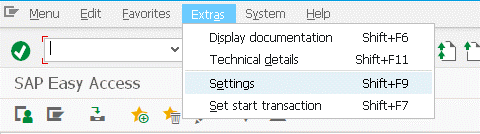
This brings up the dialog box as below:
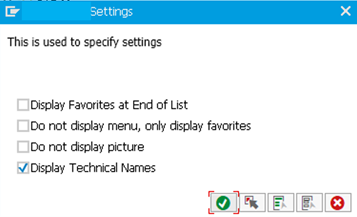
With these options you can:
• Amend your SAP menu so the standard SAP menu comes first in the list, followed by your favourites
• Only display your favourites as options
• Suppress the SAP picture on the home page
• Display transaction code names next to each option (probably the most useful setting and one I would recommend all users do when logging into the SAP GUI for the first time)
All the settings will be remembered so you only need amend them once.
More blogs

Eursap's SAP Tips: Further reading on SAP - how to upskill yourself for free
Eursap's SAP Tips: Further reading on SAP - how to upskill yourself for free
One of the challenges in today
Feb 28, 2025

Eursap's Ask-the-SAP-Expert: Tanya Wade
Ask-the-SAP-Expert – Tanya Wade
Eursap’s Ask-the-SAP-Expert article is a feature designed to give y
Feb 25, 2025

Eursap's SAP Tips: Keyboard shortcuts in SAP Fiori
SAP Tips: Keyboard shortcuts in SAP Fiori
SAP Fiori is a modern user interface and as such, caters for acce
Jan 31, 2025