
Eursap's SAP Tips: Creating a shortcut on your desktop for an SAP GUI transaction
Dec 22,2020
|
Written by
Jon Simmonds
Eursap's SAP Tips: Creating a shortcut on your desktop for an SAP GUI transaction
Some users are “light touch” users in SAP and only ever log in to look at one specific transaction. To help facilitate this and to stop them having to log in, then select the transaction from a drop down or remember a transaction code, a shortcut can be created on the desktop which navigates directly to a specific transaction.
To do this, open an SAP session and click on the transaction in the menu path. Then select Edit>Create shortcut on the desktop (or simply click CTRL +F3).
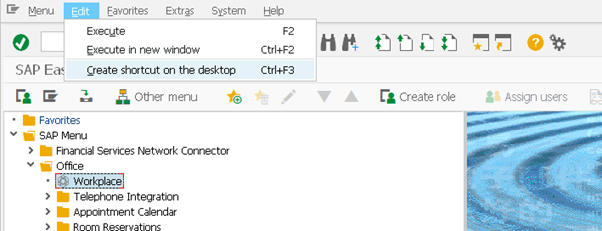
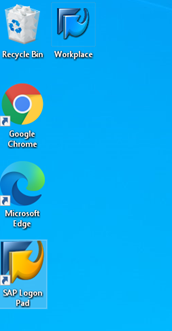
In the example above I have selected transaction SBWP – the SAP Business Workplace. This now appears as a shortcut on my desktop:
More blogs

Eursap's SAP Tips: Further reading on SAP - how to upskill yourself for free
Eursap's SAP Tips: Further reading on SAP - how to upskill yourself for free
One of the challenges in today
Feb 28, 2025

Eursap's Ask-the-SAP-Expert: Tanya Wade
Ask-the-SAP-Expert – Tanya Wade
Eursap’s Ask-the-SAP-Expert article is a feature designed to give y
Feb 25, 2025

Eursap's SAP Tips: Keyboard shortcuts in SAP Fiori
SAP Tips: Keyboard shortcuts in SAP Fiori
SAP Fiori is a modern user interface and as such, caters for acce
Jan 31, 2025